

|
Inventory Insights for Dynamics 365 BCPower BI Inventory Reporting for Dynamics 365 BC |
Product Verticals: All Industries
Business Processes: Business Intelligence, Inventory Management, Reporting, Warehouse Management
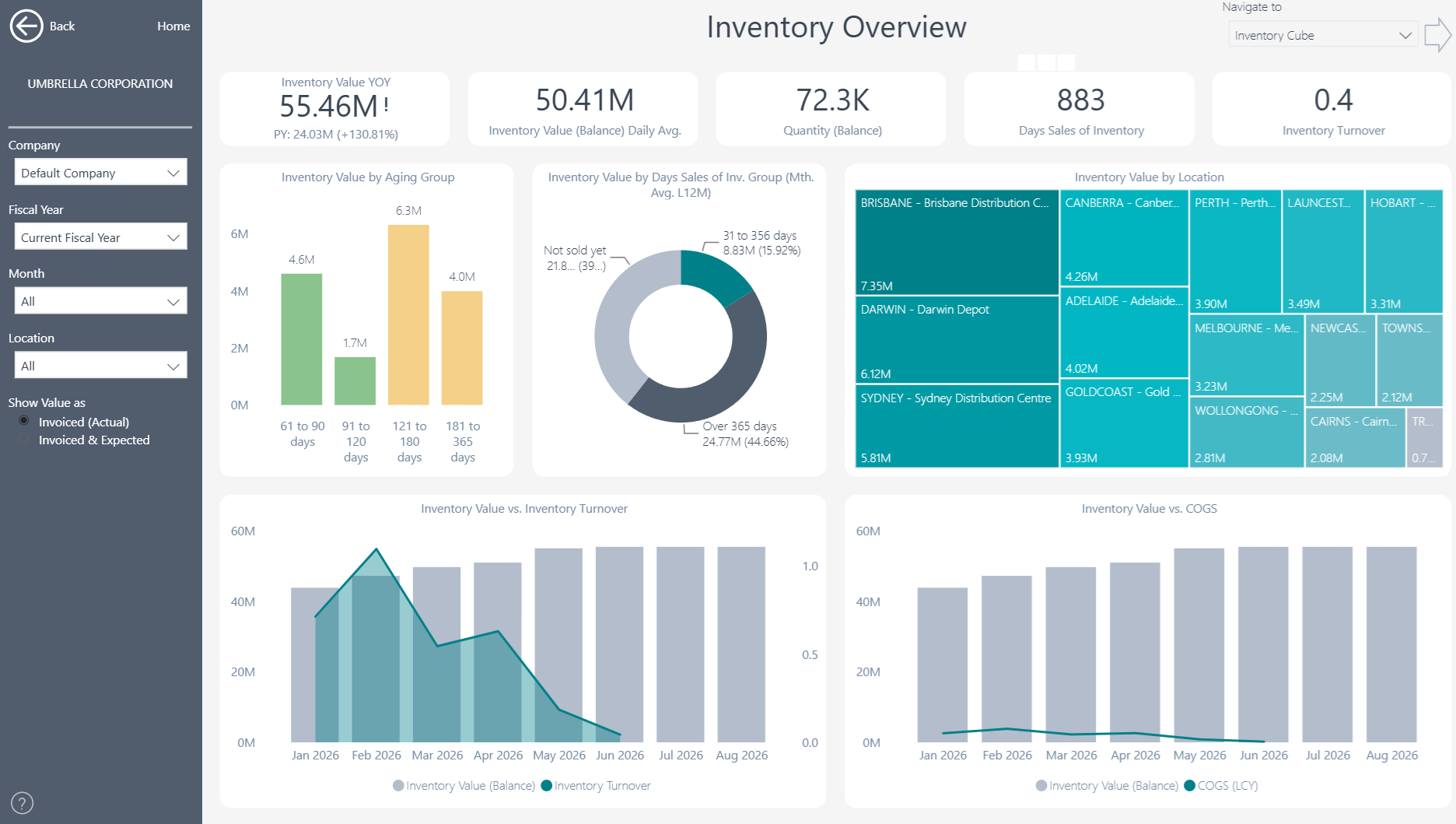
Inventory Insights gives Microsoft Dynamics 365 Business Central users 25+ ready-to-use Power BI reports. In addition, it gives operations and finance teams a clear view of stock levels, aging, availability, turnover, and order fulfillment.
 |
 |
Power BI Inventory Reporting for Business Central
Use interactive dashboards to understand where inventory sits, how quickly it moves and which items need attention. This helps teams balance product availability, customer service and working-capital goals through one consistent reporting model.
What You Can Analyze
More than 150 measures and over 20 dimensions provide a detailed view of inventory performance.
- Inventory overview and stock by location
- Inventory aging and slow-moving stock
- Days sales of inventory and inventory turnover
- Sales order fulfillment and item availability
- Out-of-stock days and service-level performance
- Inventory trends across items, categories and periods
- Item and transaction-level drill-through
Users can begin with the overall inventory position and then move to individual items, locations and source transactions.
Improve Inventory Visibility Across Locations
Bring stock information from different locations into one reporting view. Teams can compare inventory quantities, values and availability while identifying where stock may be concentrated or unavailable. This visibility helps planners understand whether inventory sits in the right place to meet demand. It also provides finance and operations teams with a shared view of stock across the organization.
Reduce Excess, Aging and Slow-Moving Stock
Identify obsolete, aging or slow-moving items before they tie up more working capital. Inventory-aging analysis helps users understand how long stock has remained on hand and where further investigation is needed. Turnover and days-sales-of-inventory measures show how efficiently stock moves. Users can compare these measures by item, category, location or period to identify excess inventory and improve purchasing or replenishment decisions.
Support Replenishment and Fulfillment Decisions
Sales-order fulfillment analysis connects inventory levels with customer demand. Out-of-stock analysis also shows how often unavailable items may affect customer service. Users can identify items with low availability, compare fulfillment performance and investigate the transactions behind each result. As a result, planners can focus attention on stock that may delay orders or affect customers.
Balance Customer Service and Working Capital
Inventory decisions often require a balance between availability and cash investment. Teams can monitor stock levels, turnover, aging and fulfillment together instead of reviewing these measures in separate spreadsheets. Consequently, finance and operations teams can discuss customer service, purchasing priorities and working capital using the same trusted Business Central data.
Multi-Company and Flexible Analysis
Bring inventory information from multiple Business Central companies into one reporting view. Users can then filter and compare results by company, date, location, item, category and other relevant dimensions. At the same time, the consolidated view preserves access to individual companies, locations, items and source transactions.
Reporting Without Custom Development
Inventory Insights connects directly to Microsoft Dynamics 365 Business Central. This means finance and operational teams can start with proven reports instead of building every dashboard from scratch. Teams can also use the underlying semantic model to create additional Power BI reports or analyze trusted Business Central data in Microsoft Excel. In this way, the app provides a flexible reporting foundation without requiring extensive custom development.
Explore Inventory Insights
Learn more about , review current , or book a tailored .
Ready to explore your own Business Central inventory data? Start a .
Submit your review | |